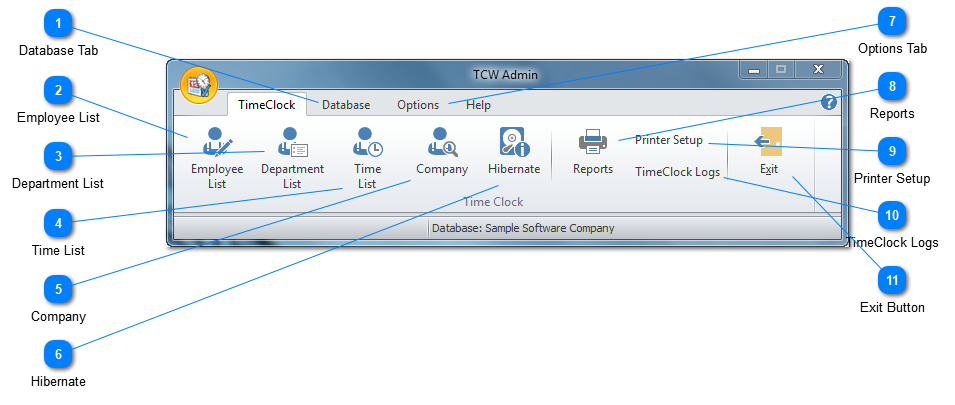
Once you've set up TimeClockWindow using the "How To 30-Day Trial" and the "Getting Started" sections, this will guide you into more of the features in TimeClockWindow. Above is the main page to the TimeClockWindow Admin program and opens to the TimeClock Tab by default.
Database Tab
The Database tab will open the second page of the main tools menu. Click here to see that page.
The Hibernate button will put the Admin tool in to Hibernate mode. In Hibernate mode it will free up the database connection and the button will display a Resume button that looks like this:
Clicking the Resume button will reconnect to the database and allow you to resume working in the Admin tool.
Note: The Admin tool is set to automatically Hibernate if there is no keyboard or mouse activity in the program for more than an hour. This is to protect your database from becoming corrupted by the Microsoft Data Access tools timing out with an open connection.