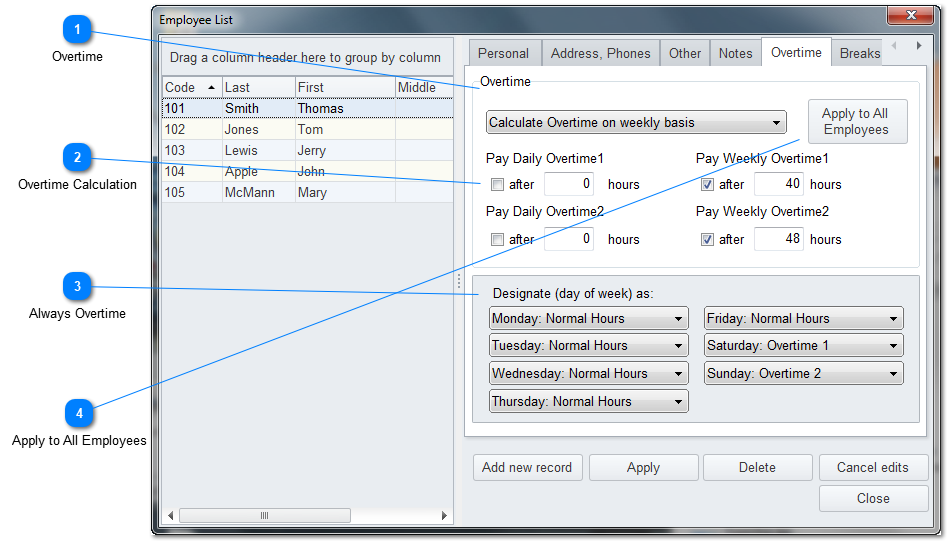
The "Overtime" page is where you set up how you want to pay your employees overtime.
Note: Multiple Department Overtime Caveat. Overtime cannot be separated out of the regular time for employees working overtime when printing the Totals Report. The problem is that overtime is calculated on total hours in a week and there is not a way to separate that out by department. You can set them up as tracking by daily hours but they still cannot work in more than one department in the same day if they are working over say the 8 hours in a day.
Note the "Apply to All Employees" button. After setting up your first employee, you can click that to apply the settings to all of your employees.
Since the US Department of Labor requires that the overtime be calculated on a 40 hour work week, you will enter in the hours you want to be the cutoff.
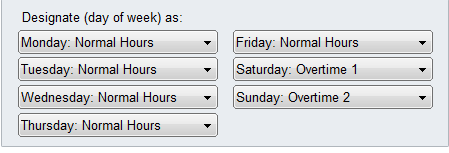
Our example above can be for any pay period that you have, be it weekly, bi-weekly or whatever. We want to pay our employees overtime if they work over 40 hours in a single week and double time for over 48 hours in a week. We also want to insure that they get overtime if the work on a Saturday or a Sunday.
The selections above will insure that the employees are paid Overtime 1 if they work over 40 hours in a single week and Overtime 2 for the time over 48 hours a week. And if they only work a few days during the week but work on Saturday and Sunday, they will be paid overtime 1 for Saturday and overtime 2 for Sunday. You can also select to calculate on a daily basis or both a daily basis with a by week test as well.
Overtime
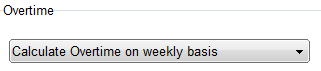
If you elect to calculate overtime, you have a choice of selecting to calculate using a daily or weekly method. You would select the choice and then enter the hours to use as the start point in item 2 shown below.
You must select the Overtime Calculation method to match what you selected in item 1 above. Our example above is set to Weekly calculations.
You can also select to use a daily calculation and an example is if it were daily and you wanted to start counting overtime after the first 8 hours, you would check the daily Overtime 1 box and enter 8. Once they reach 8 hours on any given day, the time after that would be counted as overtime 1.
Our example shows weekly with 40 hours being straight time and then from 40 hours and 1 second to 48 hours as Overtime 1 and anything over the 48 hours as Overtime 2.
If you select any of the days, they will be always treated as overtime.
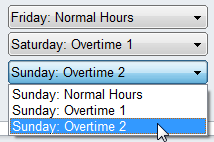
An example is if you want to pay Overtime 1 for Saturdays, check the Saturday box under Overtime 1. You would see a pick list when clicking on one of teh days like this.